eCommunity – Simplifying property management and uniting communities
The preferred all-in-one solution for community & property management in Singapore, providing Management Corporation Strata Title (MCST) and Managing Agent with improved communication, simplified payment collections, and paperless documentation capabilities.



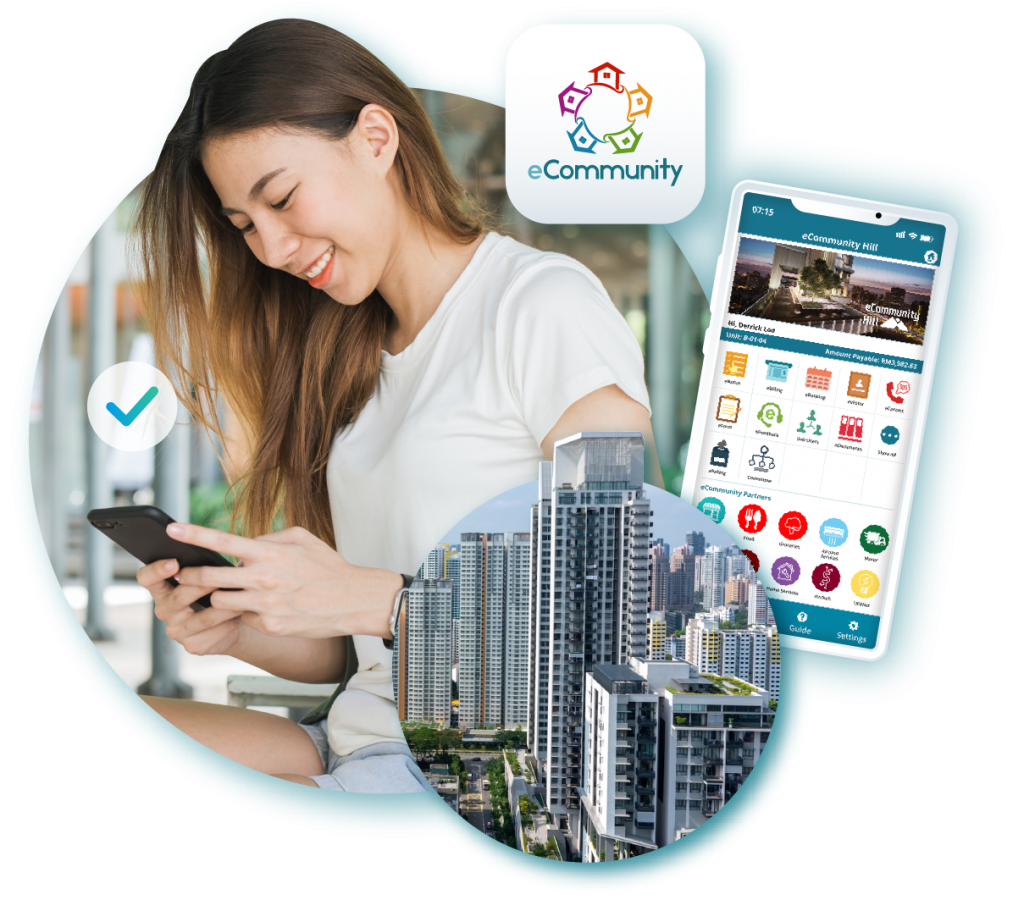
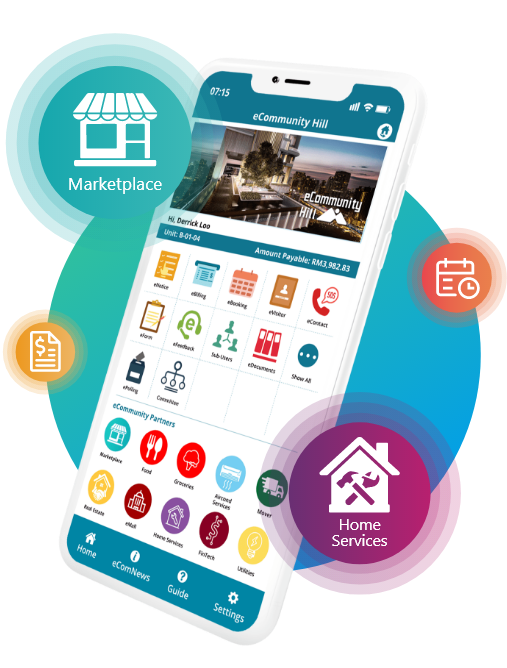
The only community & properties management system you will ever need!
300+
Neighbourhoods Using eCommunity130,000+
Number of Households60,000+
Monthly Pre-Registered VisitorsSGD2.5mil
Monthly In-App Transactions300+
Marketplace MerchantsSGD11,500+
Products & Services Sales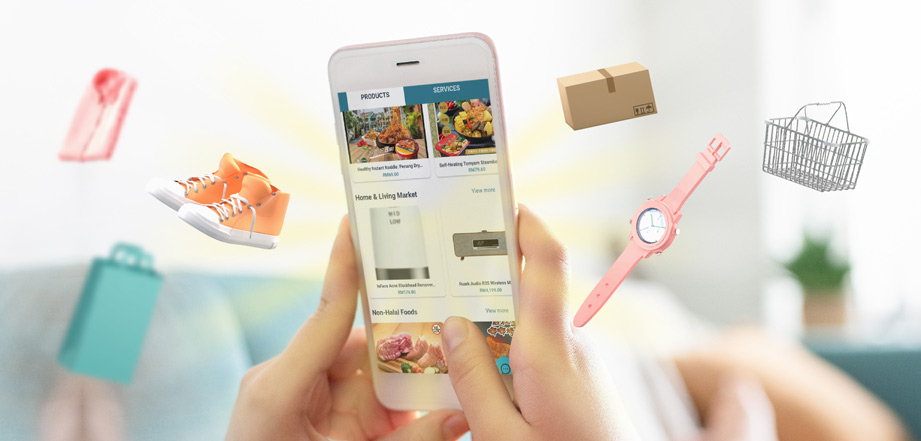
Introducing
eComMall,
the most exciting
community marketplace!
Learn More about eComMall
Become a merchant
Our Developers & Property Management Partners


eCommunity’s trusted partners

Recommend.my
Frequently Asked Questions
Learn more about eCommunity
from our FAQ!
How do I activate my eCommunity account?
a. Download eCommunity App from:
Google Playstore and Apple App Store: http://onelink.to/6q8j5c
b. Select “FIRST TIME ACTIVATION” and “VERIFY MY EMAIL or MOBILE NO.”
c. Key in and verify your Unit No. and Email or Mobile No.
d. Key in the 6 digits OTP that received from your email or mobile no. (If verify by using email, OTP will send to your email. Whereas, if verify by using mobile no., OTP will send to your mobile no.)
e. You have successfully activated your account.
What do I do if unable to activate my eCommunity account?a. Please ensure your House or Unit No. is entered in the correct format.
b. Email address or mobile no. MUST match with the records that maintained by your management office.
c. You may contact your management office for assistance.
What do I do if I want to change my details?Please contact your management office for any changes of your details as proof of property ownership is required for verification.
What do I do if I forget my password?a. Select “Forget your password” in the login page of your app.
b. Key in your username (email or mobile no.)
c. Key in the 6 digits OTP that received from your email or mobile no.
d. Key in your new password.
How to change my password?a. Select “Settings” at the bottom of your app home page.
b. Select “Change Password” under Option.
c. Key in your current password and new password.